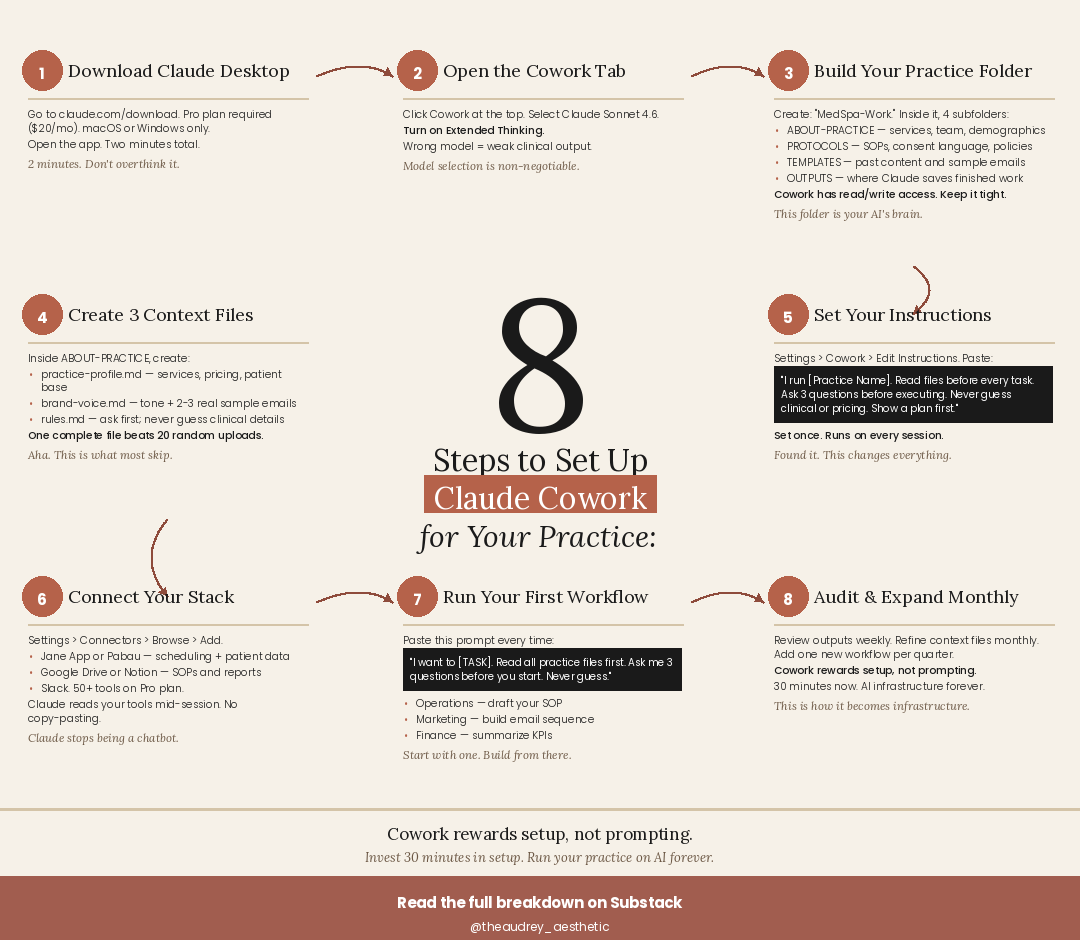
Most operators treating AI like a search engine are already behind. Claude Cowork is a different product category entirely. It is not a chatbot. It is not a prompt box. It is a persistent, file-aware, tool-connected AI workspace that operates inside your practice’s actual data — and it requires a one-time setup investment of about thirty minutes to unlock.
This post covers all eight steps. Not as a high-level overview. As a functional implementation guide.
Why Claude Cowork Is Not What You Think It Is
The standard Claude interface is stateless. Every session starts from zero. No memory of your practice, your tone, your protocols, your patients. You prompt it, it responds, the session ends, and nothing carries forward.
Cowork breaks that model. When you configure it correctly — with a structured folder architecture, calibrated context files, and persistent instructions — Claude reads your actual practice data before every task. It knows your services. It knows your voice. It knows your rules. It does not guess.
Cowork rewards setup, not prompting. The practices that invest thirty minutes in configuration will outperform those spending thirty minutes crafting prompts every session.
The distinction matters operationally. A well-configured Cowork environment can execute complex, practice-specific tasks — draft a compliant SOP, build a month of branded marketing content, summarize KPI data from your practice management system — with a single directive. Without that configuration, you are starting over every time.
The 8-Step Setup Framework
Step 1: Download Claude Desktop
Go to claude.com/download. You need an active Pro plan at $20/month. The desktop app is available for macOS and Windows. Download it, install it, open it. This step is exactly as simple as it sounds — two minutes from start to finish. Do not use the browser version for Cowork workflows. The desktop application is the foundation.
This is the only step that requires payment. Everything else is configuration.
Step 2: Open the Cowork Tab and Select the Right Model
Inside the desktop app, click the Cowork tab at the top. Select Claude Sonnet 4.6 from the model dropdown. Then turn on Extended Thinking. This is not optional. Extended Thinking allows Claude to reason through multi-step clinical and operational tasks before producing output — the difference between a surface-level response and a structured, verifiable deliverable. Wrong model selection is the most common setup error and the most consequential.
Extended Thinking is what separates Cowork outputs from standard chat outputs. Always confirm it is enabled before any complex task.
Step 3: Build Your Practice Folder Architecture
Create a dedicated folder — name it MedSpa-Work or similar — and give it four subfolders: ABOUT-PRACTICE (your services, team structure, patient demographics, and brand positioning), PROTOCOLS (SOPs, consent language, standing policies, and compliance references), TEMPLATES (past content you want preserved: past emails, social copy, patient education materials), and OUTPUTS (where Claude will save finished work). Cowork has read and write access to this folder. The architecture matters because Claude will reference it contextually — clean structure produces clean outputs.
This folder is your AI’s institutional memory. Treat it with the same discipline as your EMR.
4
subfolders that comprise a functional Cowork practice architecture
Step 4: Create Three Core Context Files
Inside your ABOUT-PRACTICE folder, create three markdown files. The first is practice-profile.md — your services with descriptions, pricing tiers (or pricing approach), patient demographics, and any positioning language you want preserved. The second is brand-voice.md — your tone documented explicitly, plus two to three real examples of your best existing emails or content. The third is rules.md — your operating rules for Claude: ask three clarifying questions before executing, never guess on clinical details, never fabricate pricing, always show a plan before drafting. One well-built context file outperforms twenty random uploads in every session.
Aha. This is the step most operators skip — and why their AI outputs sound generic.
The quality of your context files is the primary determinant of output quality. This is not a technology problem. It is a documentation problem. Practices that already run tight SOPs will find this step straightforward.
Step 5: Set Your Persistent Instructions
Navigate to Settings, then Cowork, then Edit Instructions. This is a text field that runs as a system-level directive on every single session — you set it once and it applies permanently. A functional starter instruction reads: I run [Practice Name]. Before every task, read all files in my practice folder. Ask three clarifying questions before executing anything. Never guess on clinical details, pricing, or patient-specific information. Show a plan before drafting. This instruction will never interfere with Claude’s ability to execute. It will consistently improve the quality and specificity of every output.
Set once. Applies forever. This is the highest-leverage single action in the entire setup.
Step 6: Connect Your Practice Stack
Cowork supports over fifty native integrations accessible through Settings, then Connectors, then Browse. The most operationally relevant for aesthetic practices: Jane App or Pabau for scheduling and patient workflow data, Google Drive or Notion for SOP and document access, and Slack for internal communications. Once connected, Claude can read your tools mid-session without copy-pasting. This is the difference between AI as a writing assistant and AI as an operational layer. Illume and CorralData do not yet offer native Cowork connectors, but their CSV exports can be placed directly in your ABOUT-PRACTICE folder and referenced by name in any task prompt.
Claude stops being a chatbot the moment it has access to your actual operating data.
50+
native integrations available through Claude Cowork on the Pro plan
Step 7: Run Your First Workflow
Start with a single, defined task. A reliable opening prompt for any Cowork session: I want to [specific task]. Read all practice files first. Ask me three clarifying questions before you begin. Never guess on any detail — if something is unclear, ask. Useful first workflows include drafting a new SOP for a specific treatment, building a four-week email nurture sequence for post-treatment follow-up, or summarizing the previous month’s KPI data from a CSV you have dropped into your ABOUT-PRACTICE folder. The output quality of your first workflow will benchmark what proper configuration produces. Run one workflow, evaluate the output against your standards, and adjust your context files based on what the output reveals about gaps.
Start with one workflow. Evaluate it against what you would have written. That gap is your configuration feedback.
Do not automate workflows you have not already manually validated. AI should be compressing execution time on processes you understand — not generating processes you cannot evaluate.
Step 8: Audit and Expand Monthly
Cowork is not a deploy-and-forget tool. Build a monthly review cadence: review outputs produced in the prior month and flag any that drifted from your standards, update your context files to reflect any changes in services, pricing, or protocols, and add one new workflow category per quarter. Practices that maintain their context files with the same rigor they apply to their EMR will compound returns over time. Practices that do not will find outputs gradually drift from operational reality.
This is how AI becomes infrastructure instead of a feature you tried once.
What This Actually Looks Like at Scale
A mid-volume med spa running eight to twelve providers can realistically deploy Cowork across five operational functions within sixty days of initial setup: marketing content production, SOP creation and maintenance, new hire onboarding documentation, KPI summarization and narrative reporting, and patient education material generation.
The compounding benefit is time. Each workflow that runs through a properly configured Cowork environment takes minutes, not hours. Each output that meets your standard on the first pass is a drafting cycle you did not have to run. Each SOP that updates automatically when you update your PROTOCOLS folder is a compliance gap that did not become a liability.
The practices that treat AI as infrastructure — not a task tool — will operate with margins that are structurally unavailable to those still running manual processes across every function.
The setup described in this guide is a thirty-minute investment. The operational return on that investment compounds every week it is in place.
Every step in this framework is executable today, without a developer, without an implementation consultant, and without custom software. What it requires is thirty uninterrupted minutes and the discipline to build your context files with the same care you bring to your clinical protocols.
What Comes Next
Part 8 of this series will cover AI-powered financial forecasting and KPI intelligence — specifically how to build a reporting layer that synthesizes revenue data, appointment volume, and seasonal trends into forward-looking operational decisions.
The full series index and supplementary frameworks are linked below. If this post was useful, the most effective thing you can do is forward it to one operator in your network who is still treating AI like a search engine.
Aesthetically Audrey | AI in Aesthetics: The Real Stack
Substack | Instagram: @theaudrey_aesthetic
© Audrey Campbell 2026